How Do I Share an Instagram Post: 2026 Guide
Learn how do I share an Instagram post to Stories, DMs, and external apps. Master privacy settings, reposting, and cross-platform scheduling in 2026.
You've published a post, checked the caption, and watched it appear on your profile. Then comes the practical question: how do I share an Instagram post so the right people see it? The answer depends on where you want the post to travel, who you want to reach, and whether you're sharing it once or building a repeatable content workflow.
Instagram gives you several routes, including Stories, Direct Messages, copied links, saved collections, and external scheduling tools. Each option creates a different kind of distribution. A Story can put the post in front of existing followers, a DM can start a more personal conversation, and a copied link can bring the content into WhatsApp, email, or another social network.
Table of Contents
- Why Strategic Sharing Matters for Visibility
- Sharing Natively to Stories and Direct Messages
- Copying Links and Distributing Content Externally
- Reposting and Saving Content for Later
- Streamlining Cross-Platform Sharing with Scheduler.social
- Troubleshooting Missing Buttons and Privacy Permissions
Why Strategic Sharing Matters for Visibility
Sharing used to feel like a small follow-up action after publishing. In the UK, it now deserves a place in the distribution plan. Instagram reached roughly 35 million UK users in 2026, almost 60% of the population over age 13, while UK users spent an average of 53 minutes per day on the platform, according to Instagram usage data for the UK. That gives a shared post a substantial potential audience, but it also places the post in a crowded environment where roughly 95 million posts are uploaded globally each day, according to the same source.
The audience is broad, but it isn't evenly distributed. People aged 25 to 34 form the largest UK Instagram audience group, which matters when you decide whether a post belongs in a public Story, a targeted DM, or a wider campaign aimed at working-age customers. A product demonstration may suit a Story with a link prompt, while a detailed buying guide may perform better when sent directly to people who have already asked about the product.
The market is also mature. UK Instagram usage data records about 39.1 million users by June 2026, with women representing 54.7% of users, and 96% of UK social media users knowing the platform, as reported in UK Instagram user figures. Sharing is therefore not an unusual growth tactic. It's a routine way for creators, agencies, and small businesses to keep a post moving after it leaves the main feed.
Practical rule: Don't ask only whether a post is good enough to share. Ask which sharing route gives it the most relevant next audience.
There's a useful tension in the latest UK distribution picture. Instagram ad reach rose from 33.4 million users in early 2025 to 35.5 million by late 2025, while Metricool's UK analysis found that post impressions were the only Instagram post metric to grow in 2025, increasing by 27%, as reach, interactions, and engagement declined, according to Digital usage and social media data for the UK. That doesn't mean every share will improve performance. It does mean a deliberate sharing process can help preserve visibility when organic interaction is less dependable.
For a broader planning perspective, a practical social media photo sharing strategy can help teams connect individual posts with wider campaigns. Within Instagram itself, test audience availability and timing rather than relying on habit. A useful starting point is this guide to the best times to post on Instagram, then adjust based on your own audience activity and the purpose of each post.
Sharing Natively to Stories and Direct Messages
The fastest way to redistribute someone's post, or your own, is usually through Instagram's share control. Open the post, tap the paper-plane icon below the image or video, and Instagram will show available destinations. The labels can vary slightly between iPhone and Android, and some options disappear when the original account or post has sharing restrictions.
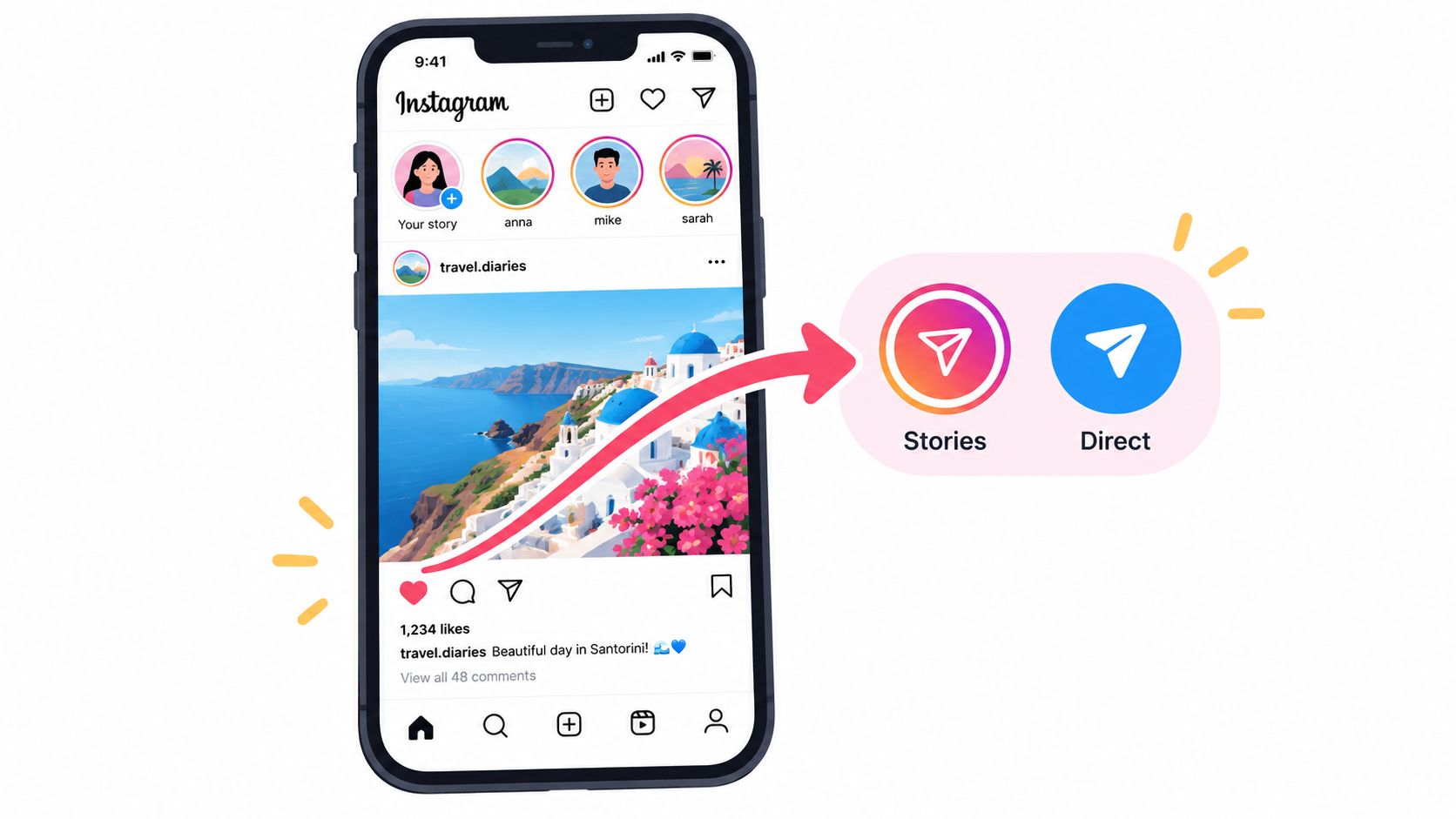
Adding a post to your Story
Use this sequence:
- Open the post: Find the post in your feed, on a profile, or in Explore.
- Tap share: Select the paper-plane icon beneath the post.
- Choose Story: Tap Add to story or the equivalent Story option.
- Edit the frame: Pinch with two fingers to resize the post preview, then drag it to reposition it.
- Add context: Use text, GIFs, mentions, polls, questions, or another suitable sticker.
- Publish: Tap Your story, or choose a close-friends audience if the content is intended for a smaller group.
The shared post usually remains a clickable card that takes viewers back to the original Instagram post. Don't cover the card with oversized text or stickers. A short sentence explaining why the post matters is more useful than repeating the caption.
Use Stories for public awareness among your existing audience. They're particularly useful when you want to remind followers about a new carousel, highlight a customer result, or give a post a second opportunity to be noticed. If your audience includes UK working-age adults, including the platform's largest identified group, write the Story overlay for quick mobile reading rather than assuming people will stop to study the original caption.
A Story share is also a good place to add a direct prompt, such as “Save this checklist” or “Send us your question”. It shouldn't become a reflexive repost of every feed item. Selective sharing keeps the frame useful and gives followers a reason to tap through.
Sending a post by Direct Message
For a DM, open the same share menu and either search for a person or group, select a suggested contact, or copy the post into an existing conversation. Add a short personal message before sending. “This reminded me of the packaging issue you mentioned” creates a conversation; a bare post link often feels like noise.
Use DMs when relevance matters more than reach. A customer asking about a service, a colleague reviewing campaign material, or a small community discussing a topic is a better fit than a broad Story broadcast. Group DMs can help coordinate a campaign, but keep the recipient list focused and avoid sending promotional content to people who haven't shown interest.
If the original post is video-led, the same thinking applies to your supporting content. Teams producing more ambitious short-form assets may also find guidance on creating AI music videos for Reels useful when planning the video that will later be shared through Stories or DMs.
Before publishing a Story with a destination outside Instagram, check the available link options and placement. This practical guide to adding a link to an Instagram Story covers the mechanics, but the strategic point is simple: one clear action performs better than several competing prompts.
Copying Links and Distributing Content Externally
Instagram's share sheet is convenient inside the app, but external distribution is where many teams lose time. To copy a post link, open the post, tap the three dots in the top-right corner, and choose Copy link. On some devices, the paper-plane menu also includes a copy-link option. Instagram places the URL on your clipboard, ready to paste into WhatsApp, email, LinkedIn, X, or a browser-based campaign tool.
The copied link takes the recipient to Instagram, where they may need to sign in or use the app. That friction matters. A customer who receives a post in an email newsletter may not want to leave the email, so give them a reason to click rather than pasting the URL without explanation.
Try this external caption structure:
- Lead with the value: State what the person will learn, see, or decide after opening the post.
- Add the context: Explain why you're sharing it with this particular audience.
- Give one action: Ask them to view the post, comment, save it, or send a question.
- Paste the clean link: Put the Instagram URL after the message rather than hiding it in a crowded block of text.
WhatsApp is useful for personal recommendations and customer communities. LinkedIn suits professional commentary when the Instagram post supports a business lesson or visual example. Email works well for evergreen posts, but only if the message includes enough context to stand alone. X can help with fast distribution, although a copied Instagram link still depends on the recipient choosing to open another platform.
Handling previews and tracking
A link preview may fail to load, display an incomplete image, or show outdated information. That can happen because the receiving platform can't retrieve Instagram's preview data, the post has privacy restrictions, or the app has cached an earlier version. Don't waste time repeatedly reposting the same URL. Add a descriptive caption and a visible call to action so the message still makes sense if no preview appears.
For campaign measurement, use a link structure your analytics system can recognise, where the destination allows it. Keep the Instagram link clean when sharing one-to-one, and use tagged campaign links only when you understand how the destination and reporting system handle them. Some platforms strip tracking parameters, so test the final pasted link before sending a newsletter or scheduled update.
External sharing works best as a supporting channel, not a replacement for native Instagram distribution. Use it to reach people who already know your brand, to bring a post into an existing conversation, or to connect Instagram content with a broader launch.
Reposting and Saving Content for Later
Instagram's native tools don't offer a universal “repost this to my feed” workflow for every post. That's why people often confuse saving a post with republishing it. Saving is private. It adds the post to your account's saved area, where you can organise it into collections such as “product references”, “photography ideas”, or “customer questions”.
To save a post, tap the bookmark icon beneath it. Tap and hold the icon, where available, to choose or create a collection. This is the safest option when you're researching content, building a mood board, or collecting examples for a future planning session. The original creator remains attached to the post, and you aren't presenting the material as your own.
Choosing a reposting method
If you need the content on your own grid, the practical options have different risks:
| Method | Best use | Main limitation |
|---|---|---|
| Native share to Story | Temporary amplification with original attribution | It doesn't create a permanent grid post |
| Screenshot or downloaded asset | Content you have permission to republish | Attribution and image quality become your responsibility |
| Third-party reposting app | Repeated curation workflows | Account access and platform compliance require careful review |
| Creator-delivered asset | Approved user-generated content campaigns | You need clear permission and an agreed format |
A screenshot is not permission. Ask the creator before downloading, editing, or publishing their work. Confirm whether permission covers your feed, Stories, paid promotion, website, and other channels. Tag the creator visibly in the caption and image where appropriate, but remember that attribution doesn't replace permission.
Third-party tools can save manual effort, but don't enter your Instagram password into an unfamiliar service. Prefer authorised login flows, review the permissions requested, and remove access when you stop using the tool. If a tool promises to bypass privacy settings or download restricted content, treat that as a warning rather than a shortcut.
Creator etiquette matters: Give the original author control over how their work is reused, not just credit after publication.
For brands using customer content, create a simple approval record. A direct message confirming the intended use is better than relying on an ambiguous comment. Keep the original file, the permission message, the creator's handle, and any restrictions together so another team member doesn't accidentally reuse the asset outside the agreed scope.
Streamlining Cross-Platform Sharing with Scheduler.social
Manual sharing breaks down when one Instagram post needs different treatment across several channels. The caption that works under a carousel may be too long for another network, while a Story prompt may make little sense in an email or professional post. Copying and pasting the same message everywhere saves little time if you still have to rewrite, check, approve, and publish each version separately.
A central workflow solves the operational problem. A social media scheduling and AI marketing platform can help teams plan content, adapt messages for different channels, route drafts through approval, and publish from one organised workspace. Scheduler.social provides a visual content calendar, AI-assisted writing workflows, approval steps, scheduling, and bulk publishing across major networks. Its role is to replace repetitive manual work while keeping the final message under human review.
A practical team workflow
Start with the original Instagram idea, then create channel-specific versions rather than cloning the same caption.
- Plan the campaign: Place the feed post, Story reminder, external announcement, and follow-up message on the visual calendar.
- Adapt the copy: Keep the core proposition, but change the opening, length, call to action, and tone for each network.
- Route the draft: Ask the client, founder, or compliance reviewer to approve the caption and creative before publication.
- Schedule the sequence: Queue the Instagram post and supporting updates so distribution doesn't depend on somebody remembering to post live.
- Review the result: Compare the response by channel and refine the next set of messages.
This approach separates content creation from content distribution. A small business owner can prepare a week of related updates in one sitting instead of opening several apps every morning. An agency can keep client approvals visible and reduce the risk of publishing an unapproved edit.
Use Scheduler.social's Instagram scheduling workflow when the post is ready for planned publication rather than immediate sharing. The tool is one option among many, so check account compatibility, publishing permissions, and the exact features available on your chosen plan before building a process around it.
Automation doesn't remove the need for judgement. A scheduled post still needs a current caption, accurate product information, and a human check for comments or breaking context. The gain comes from removing avoidable repetition, not from publishing without oversight.
Troubleshooting Missing Buttons and Privacy Permissions
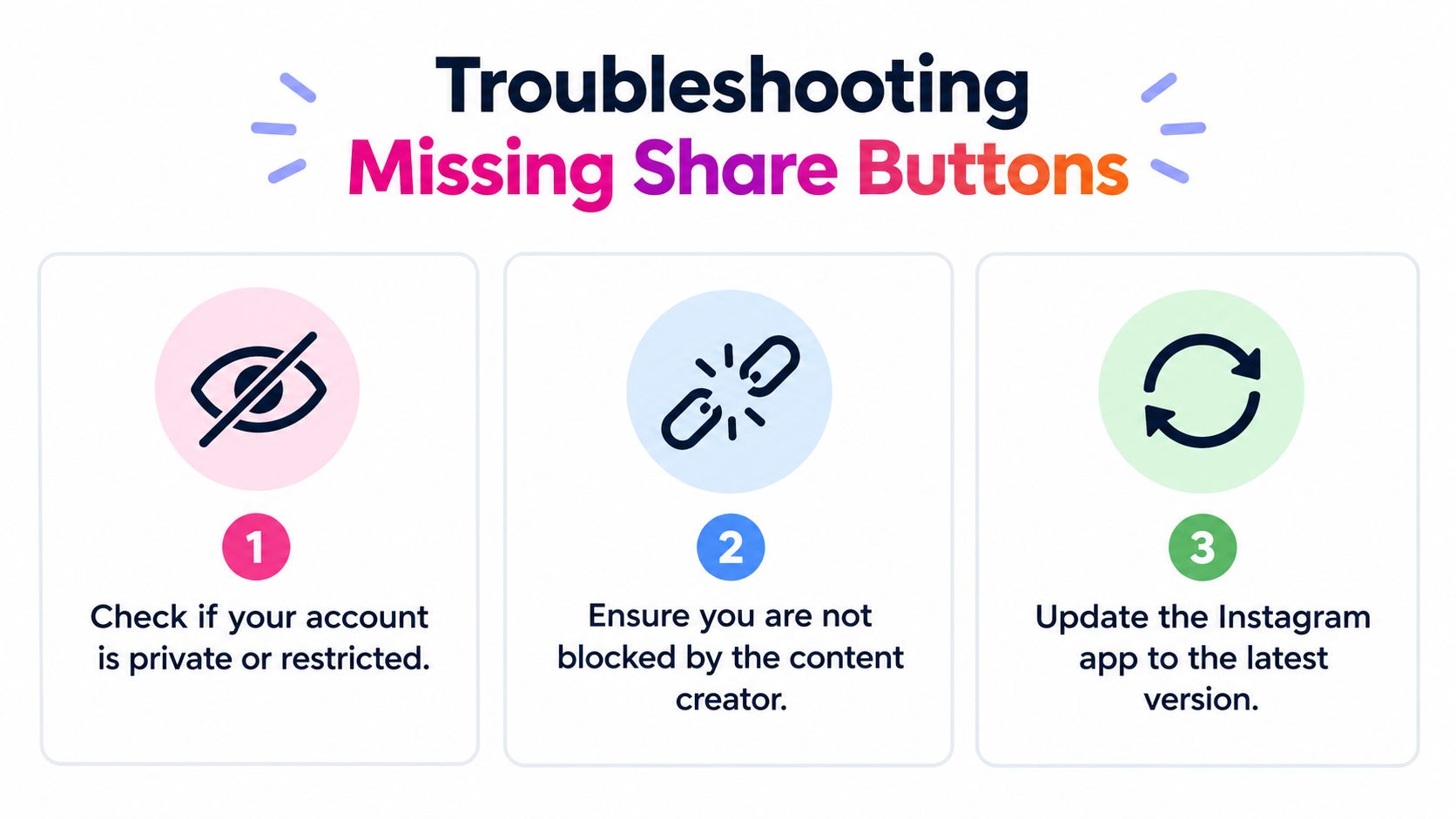
A missing share button usually has a reason. Instagram may restrict sharing because the original account is private, the creator has disabled resharing, the post contains rights-managed material, or your app is behaving incorrectly. The quickest fix is to identify whether the problem affects one post, one account, or every post you try to share.
Check the account and post
If you can't add someone else's post to your Story, visit their profile and check whether the account is private. Private posts generally have more limited redistribution because the creator controls who can see the content. A creator may also have turned off the option that allows other people to share feed posts to Stories.
If your own followers can't share your post, review your account privacy and sharing controls in Instagram's settings. Look for options relating to account privacy, Story sharing, and allowing others to share your posts. The exact menu wording can change after app updates, so use Instagram's settings search if the option isn't where you expect it.
Clear technical blockers
Try the basics before reinstalling the app:
- Update Instagram: Install the current app version from the relevant app store.
- Test another post: This shows whether the issue is attached to one creator's permissions or your account.
- Switch connection: Try reliable Wi-Fi or mobile data to rule out a loading problem.
- Restart the app: Close Instagram fully, reopen it, and sign in again if necessary.
- Check access: Confirm that you can view the original post and that the creator hasn't blocked or restricted your account.
- Report a persistent fault: Use Instagram's in-app help route when the share control remains unavailable across otherwise shareable posts.
Don't try to force a repost through a tool that bypasses privacy or copyright controls. If a creator has disabled sharing, ask for the original asset and permission instead. That protects the relationship and gives you a better-quality file for any approved reuse.
The most reliable sharing workflow combines the right destination with the right permission. Use Stories for visible reminders, DMs for relevant conversations, copied links for external channels, saved collections for private research, and scheduled distribution when the same campaign needs consistent handling across networks.
Scheduler.social brings planning, channel-specific adaptation, approvals, and publishing into one workspace, so you can turn individual Instagram shares into an organised distribution workflow. Visit Scheduler.social to plan your next campaign, adapt its messages for different platforms, and reduce the manual work between creating a post and getting it in front of the right audience.