LinkedIn recommends an 800 by 800 pixel square image at a 1:1 aspect ratio, under 8 MB, with a minimum of 400 by 400 pixels. That's the practical LinkedIn profile picture size to prepare before you upload.
You've probably seen the problem before. Someone updates their profile on a Monday morning, selects a perfectly good headshot, and then notices that the face looks soft, the top of the hair is clipped, or the circular avatar makes the person almost impossible to recognise. The file was accepted, but acceptance isn't the same as a professional result.
LinkedIn reduces a carefully composed photograph to a small circular identifier used beside posts, comments, search results, and profile details. Resolution, central composition, contrast, and recognisability matter as much as the dimensions themselves. The right workflow starts with a clean square source file, then checks what survives the crop.
Table of Contents
- The Exact LinkedIn Profile Picture Size to Use
- LinkedIn Official Profile Photo Requirements
- Why 800 by 800 Pixels Is the Practical Sweet Spot
- Upload Steps and Mobile Versus Desktop Behaviour
- File Type, Compression and Export Settings
- Common Mistakes That Blur or Waste Your Photo
- Accessibility and Professional Appearance Checks
- Quick Reference Summary
The Exact LinkedIn Profile Picture Size to Use
Use an 800 × 800 pixel image with a 1:1 square aspect ratio. LinkedIn's official guidance sets 400 × 400 pixels as the minimum, allows images up to 7680 × 4320 pixels, and requires the file to remain below 8 MB. The platform's guidance is active and was recently updated in 2026, so older cheat sheets shouldn't override the current specification. LinkedIn's published profile-picture guidance confirms the 400 × 400 specification and 8 MB ceiling.
The 400 × 400 file is the eligibility floor, not the strongest production target. An 800 × 800 square gives you more usable detail before LinkedIn resizes the image and applies its circular display. It also gives you room to position the head and shoulders safely inside the circle without relying on a tight, unforgiving crop.
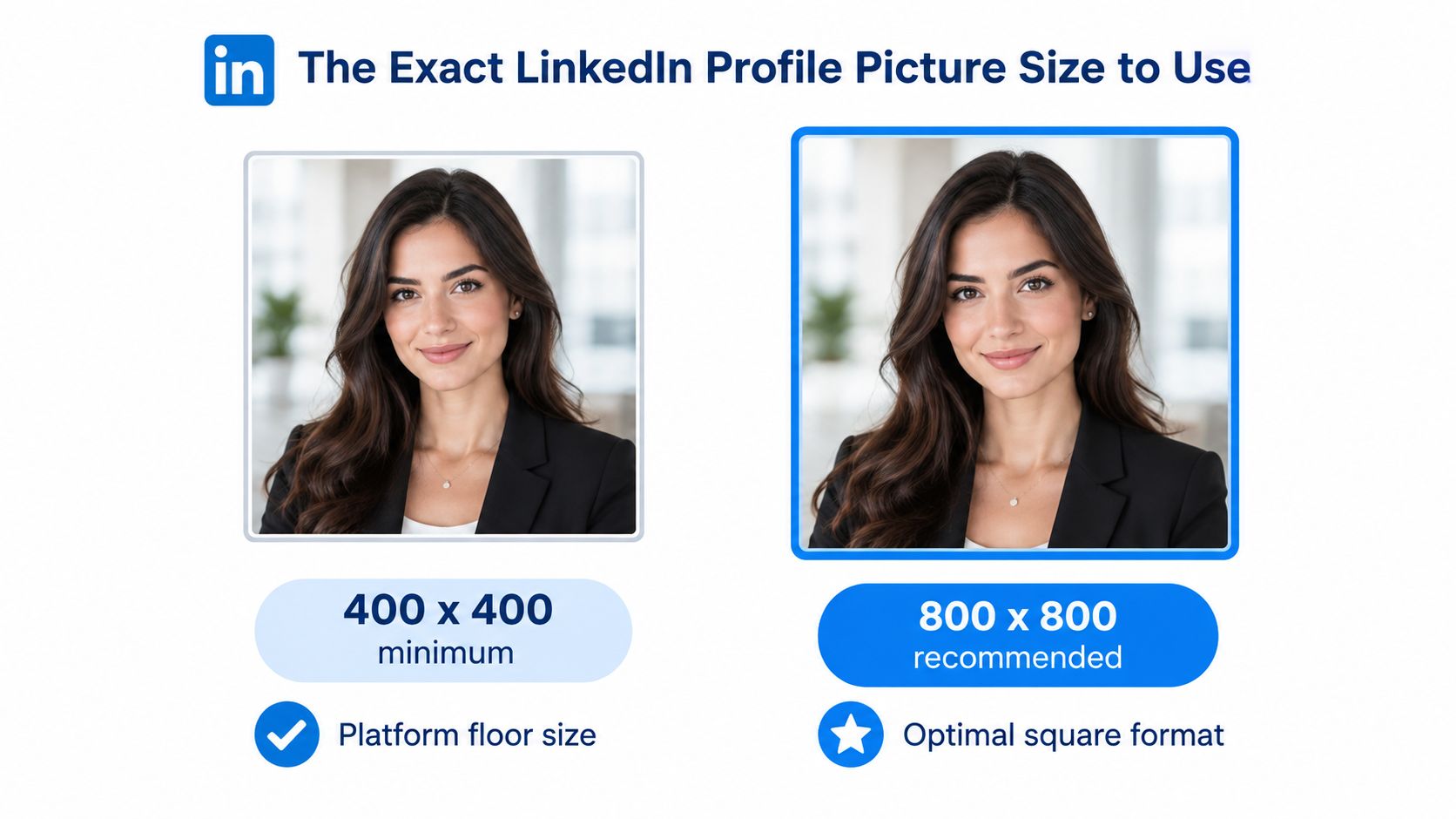
Keep the face near the centre, leave breathing room around the hair and shoulders, and inspect the result at a small size. If you're also preparing a company presence, the same visual discipline should carry into your LinkedIn company page setup, where profile and banner assets need to work as a connected system.
LinkedIn Official Profile Photo Requirements
LinkedIn's official checks cover pixel dimensions, file size, and image shape. The platform accepts a wide range of dimensions, but the uploaded profile image must remain below 8 MB. Its published help material sets the 400 × 400 pixel minimum and advises choosing a photograph that will not need excessive cropping. LinkedIn's own image guide provides the baseline requirements.
Prepare the upload as a square because LinkedIn renders the profile photo inside a circle. The corners of the original file disappear in the avatar, so keep hair, shoulders, and any identifying details away from the edges. Logos or text placed near a corner may be cut off even when the file passes LinkedIn's technical checks.
Use the minimum only when necessary
A 400 × 400 file can upload successfully, but it leaves less room for repositioning and gives LinkedIn less source detail to process. Resize the image deliberately, preserve the square composition, and avoid submitting an enormous original without checking its crop and file weight.
Test the rendered avatar
Place the eyes and facial features within the central area, with enough space above the head and below the shoulders. Avoid cutting into the chin, forehead, or shoulders, and choose a background that does not compete with the face.
Upload a test crop at actual avatar size before publishing. If the face requires squinting to recognise on screen, it will be difficult to identify in feed results. Check the small preview on both light and dark backgrounds, since low contrast can make hair, glasses, or facial edges disappear.
Why 800 by 800 Pixels Is the Practical Sweet Spot
The difference between 400 × 400 and 800 × 800 isn't just a larger number. It gives the image more source detail to preserve when LinkedIn crops the square into a circle, resizes it for different placements, and compresses the final version. Dock Street Studio's UK guidance recommends exporting at 800 × 800 while confirming that LinkedIn accepts 400 × 400.
A 400 × 400 upload can look acceptable in the editing window and then appear less defined in a feed, particularly when the original photograph has already been compressed or enlarged from a smaller file. Fine hair edges, glasses frames, facial contours, and jacket lines are the first details to suffer. An 800 × 800 source doesn't rescue a poor photograph, but it gives a good photograph a stronger starting point.
Practical rule: Export the final square at 800 × 800, then judge the face at the size people will actually see it.
The higher-resolution target is especially useful when the crop needs adjustment. You can move the subject slightly without pushing important features against the circular edge. The result is a more forgiving upload, not an invitation to leave excessive empty space around the head.
Upload Steps and Mobile Versus Desktop Behaviour
Prepare the file before opening LinkedIn. Confirm that it's square, check the face sits centrally, and save a clean final copy rather than uploading a screenshot or a downloaded social-media thumbnail.
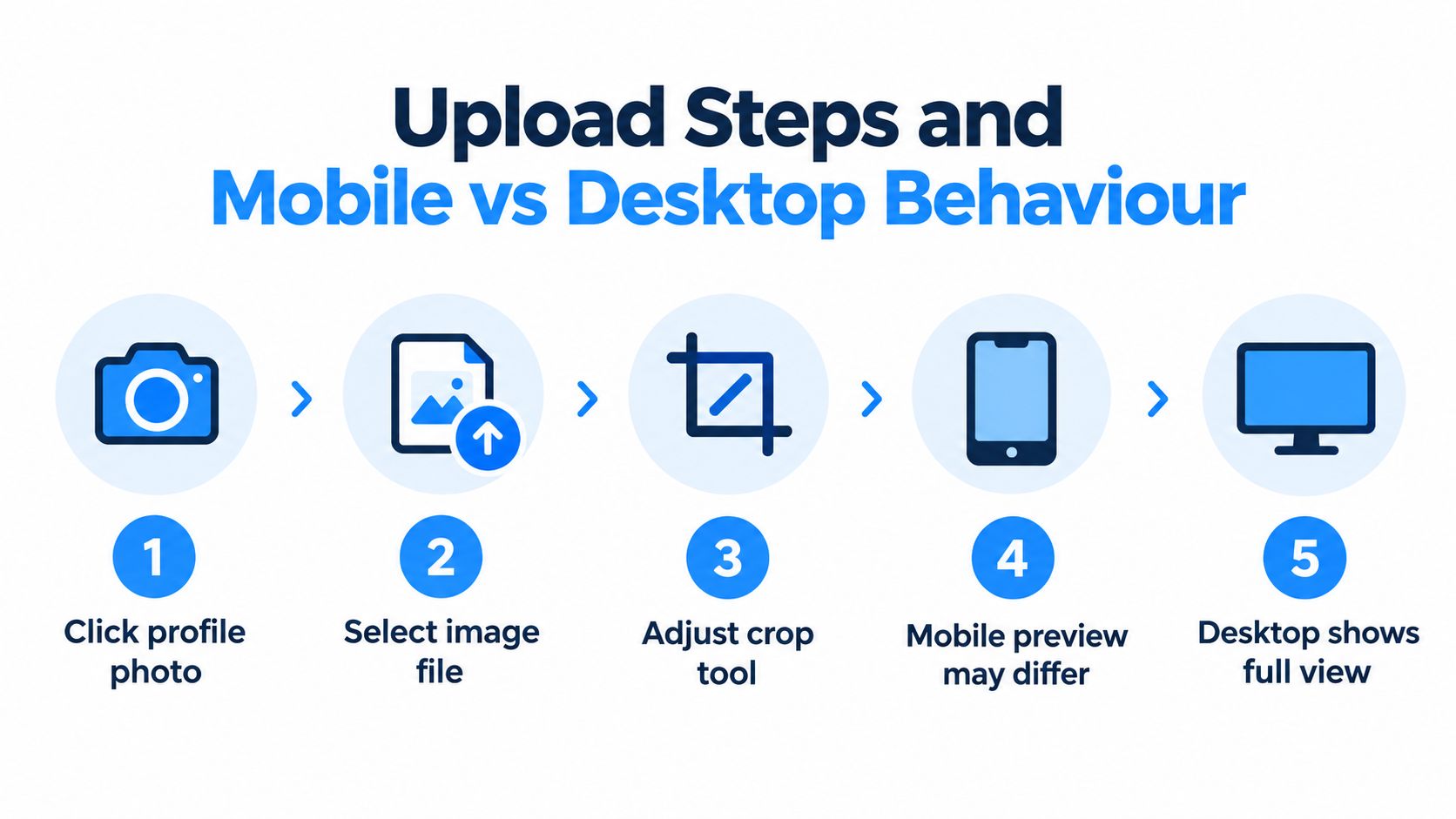
- Open your profile: Select the profile photo area and choose the option to change or edit the image.
- Select the prepared file: Upload the 800 × 800 square rather than a loosely cropped original.
- Adjust the crop: Use LinkedIn's positioning controls to keep the face, hair, and shoulders inside the circular safe area.
- Check the mobile view: Mobile screens can make a small avatar feel tighter, so inspect whether facial features remain clear.
- Review on desktop: Desktop profile pages give you a different visual context. Confirm the photo still looks balanced beside your headline and background image.
Don't accept the first crop automatically. Move the image until the face is prominent without touching the edge, then save and revisit the profile from another device if possible. The goal isn't to show the most of the photograph. It's to make the smallest version instantly recognisable.
File Type, Compression and Export Settings
For a headshot, export a clean JPEG when the image is photographic, or use PNG when the file contains sharp graphic elements such as a logo. The format alone won't fix a soft original, but a sensible export prevents avoidable blur and compression artefacts.
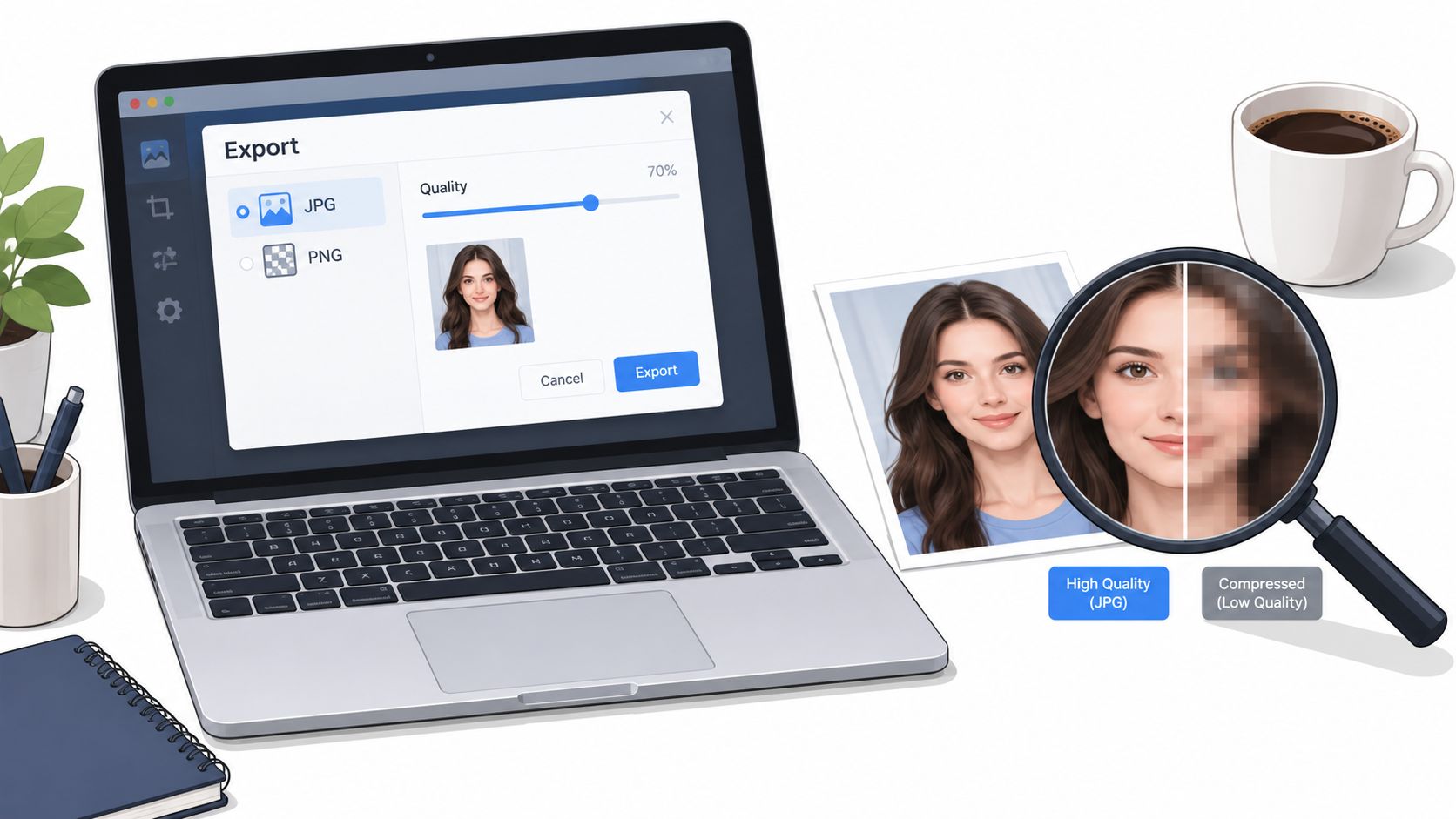
Crop first, resize second, and export once at the final square dimensions. Repeatedly saving and reopening a JPEG can soften edges, especially around hair, glasses, and high-contrast backgrounds. Keep the final file comfortably below LinkedIn's 8 MB limit, but don't pursue aggressive compression if it makes skin tones blocky or facial detail muddy.
A useful preparation sequence is simple:
- Start from the highest-quality original available.
- Create the square crop before reducing the dimensions.
- Keep the face away from the circular edge.
- Inspect the exported file at normal size and as a tiny avatar.
- Upload the final version, not an image copied from another platform.
For a visual walkthrough of export choices, use the video below as a supplementary reference.
Common Mistakes That Blur or Waste Your Photo
A square upload isn't automatically a good upload. The most common failure is starting with a low-resolution image, enlarging it to meet the requested dimensions, and assuming the new pixel count adds detail. It doesn't. Enlarging creates a larger file, not a sharper face.
Heavy compression causes a different problem. It can turn hair, skin texture, and jacket edges into muddy blocks, particularly when the photograph already has a busy background. A dark face against a dark background also loses definition after LinkedIn reduces the image to a small circle.
Avoid these predictable errors:
- Using a tiny source: Don't stretch a thumbnail, messaging-app image, or screenshot into a profile photo.
- Ignoring the circle: Keep important features away from the corners and extreme edges.
- Overloading the background: A plain, well-lit background keeps the face legible.
- Cropping too tightly: Leave enough space for LinkedIn's circular treatment.
- Changing identity between channels: A drastically different photo on your website, company page, and professional profiles can make recognition harder.
Review the finished avatar beside your name and headline, not only in an image editor. The broader principles in these LinkedIn post best practices also apply here: presentation should support recognition rather than compete with the message.
Accessibility and Professional Appearance Checks
UK professional guidance places the emphasis where it belongs: the person should be clear, recent, recognisable, and professionally presented. The National Careers Service LinkedIn guidance focuses on recognisability and professionalism, while UCL's branding guidance highlights the fact that platforms can use different shapes, including square and round formats.
Before publishing, run a small-avatar test. Reduce the image until it resembles the size people see beside a comment, then ask whether the face remains identifiable without effort. Check the following:
- Lighting: Are both eyes and the main facial features visible?
- Contrast: Does the face separate clearly from the background?
- Composition: Does the circular crop leave the head and shoulders intact?
- Expression: Does the photograph communicate an approachable, credible presence?
- Consistency: Does it still look like you across your website, email signature, and other professional channels?
Don't use accessibility as a reason to add text over the photograph. Text becomes unreadable at avatar size, and decorative elements can distract from the person. For supporting profile content, tools such as the LinkedIn text formatter can help structure written information, but the image itself should remain visually simple.
Quick Reference Summary
- Recommended working file: 800 × 800 pixels.
- Minimum accepted size: 400 × 400 pixels.
- Aspect ratio: 1:1, square.
- Maximum file size: Under 8 MB.
- Displayed shape: Circular.
- Best preparation: Start with a high-quality headshot, crop it square, keep the face central, and inspect the final avatar on mobile and desktop.
Use the minimum only when necessary. For a sharper, more flexible result, upload a carefully composed 800 × 800 square that remains clear after LinkedIn's circular crop and compression.
If your team is managing profile updates alongside regular LinkedIn content, Scheduler.social gives you a visual calendar, channel-specific adaptation, approval workflows, and scheduled publishing from one dashboard. Visit Scheduler.social to organise your social workflow and keep every profile and post consistently prepared.