How to Save Instagram Post as Draft on iOS, Android & Web
Master how to save Instagram post as draft on iOS, Android and web. Learn to manage drafts, fix common issues and switch to Scheduler for team workflows.
You've written most of the caption, found the right location, adjusted the crop and chosen the perfect cover frame. Then someone calls, a meeting starts or your phone battery drops, and you need to leave Instagram without losing the work. That's exactly where an Instagram draft helps.
The process is simple, but the way drafts are stored matters more than most tutorials mention. A draft can preserve unfinished media and caption details inside Instagram, yet it isn't a dependable content library for a team or a campaign that must survive a device change.
Table of Contents
- Why Saving an Instagram Draft Feels Like a Relief
- How to Save Instagram Post as Draft on Each Platform
- Finding and Managing Your Saved Instagram Drafts
- Why Native Instagram Drafts Are Risky for Teams
- Using Scheduler as a Safer Draft and Scheduling Home
- When to Keep Drafts Inside Instagram and When to Move On
Why Saving an Instagram Draft Feels Like a Relief
The relief comes from keeping your momentum. You've already selected the image, made your edits and shaped the caption. Saving the post as a draft lets you pause without publishing something unfinished or rebuilding the post later.
An Instagram draft is unpublished content saved within the app. It can retain the selected photo or video, edits, caption, location, tags and other post details, so you can return to the same work rather than start again. For a creator preparing a product photo, that means the caption and visual treatment stay together while you wait for a final check.
A draft isn't a saved post
Instagram's terminology can cause confusion. A draft is your own unfinished post, attached to the account and app environment. A saved post, by contrast, is already published by someone else and bookmarked through Instagram's save feature for later viewing. Saving a post doesn't preserve your unpublished caption or edits.
Drafts also differ by content type. Post and Reel drafts remain available in the app, while Story drafts are automatically deleted after seven days, as outlined in Instagram draft guidance. That makes a Story draft useful for short-term preparation, but unsuitable as a long-term archive.
The practical limit
I've learned to treat native drafts as a temporary holding point, not a backup. They're useful when you're working alone on one phone and need to stop mid-edit. They become risky when the post contains source material, campaign copy or approval work that other people need to access.
Practical rule: Use an Instagram draft to pause editing. Keep the original media and final copy somewhere else.
The feature does its job well at the moment of interruption. The mistake is assuming that a convenient in-app pause is the same thing as secure, shared storage.
How to Save Instagram Post as Draft on Each Platform
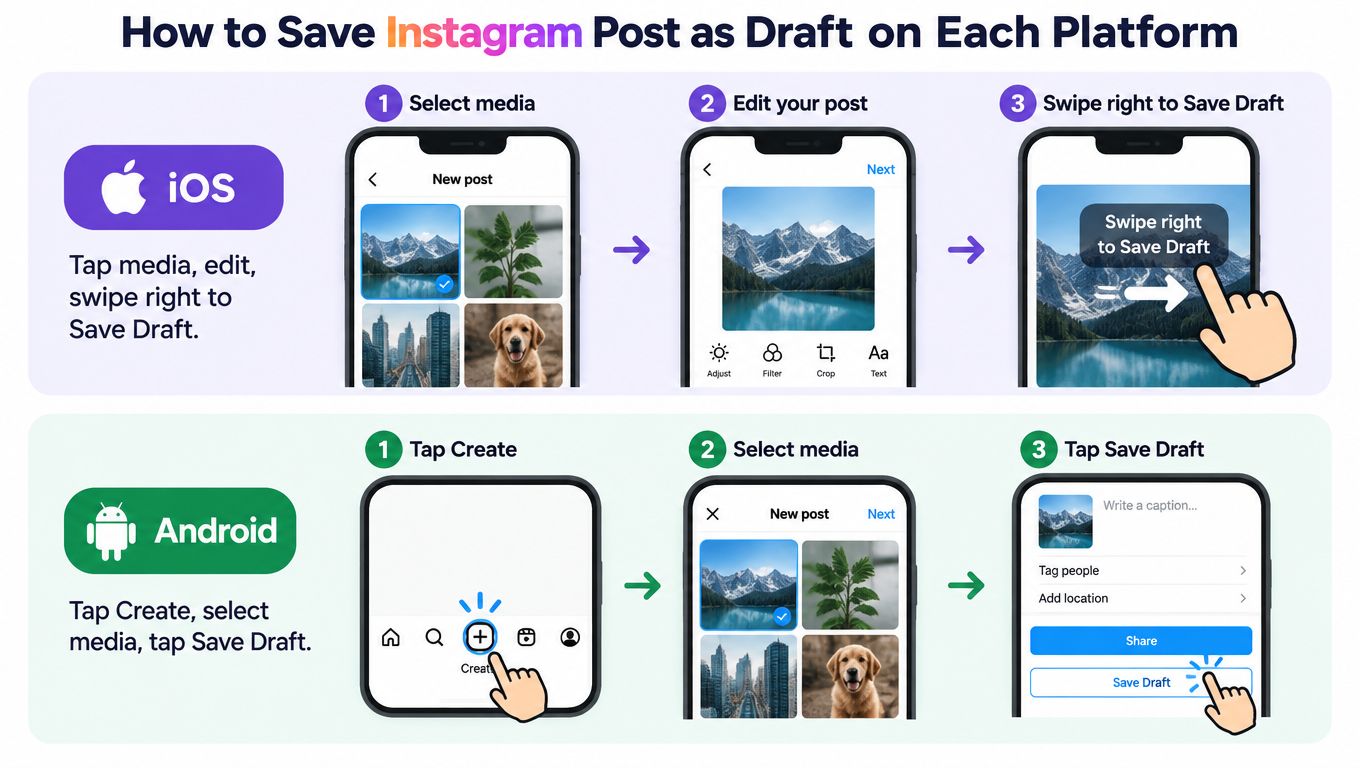
On iOS and Android, open Instagram and start a new post by tapping Create (+) or swiping right from Feed. Select a photo or video, then tap Next. Make at least one change, such as applying a filter, adjusting the image, adding a caption, selecting a location or tagging an account.
Tap Next again to reach the sharing screen. Use the back arrow to leave the editor, tap Close if Instagram shows that option, and choose Save draft. The change matters because Instagram may not offer the save prompt when the post contains no edit, caption, location or similar detail. The Instagram mobile workflow confirms that the post needs some change before it can be stored as a draft.
iPhone and iPad
On iOS, the route is usually easiest from the plus button or by swiping right from the feed. Choose your media, make a small edit if necessary, add the caption or location and move back through the editor until Instagram asks whether you want to discard or save the work.
Tap Save Draft, not Discard. The unfinished post should then appear in the Drafts area the next time you open the creation flow.
Android phones
Android follows the same basic logic. Tap Create, select your media and use Next to move through the editor. Add a caption, location, tag or edit, then use the back arrow and confirm Save draft when Instagram presents the choice.
If you're managing several channels and want to compare native Instagram preparation with a broader publishing workflow, the Instagram scheduling overview provides useful context.
Instagram on the web
On desktop, start a new post from Instagram's sidebar and upload or select your media. Continue through the browser editor, add the available post details and choose the option to save rather than publish when you leave the composition flow.
The web experience can differ from the mobile app, and the exact labels may change after an update. The underlying principle remains consistent: add or edit the content, leave the editor deliberately and confirm that you want to preserve the unfinished post. A saved draft still needs to be shared manually. It won't publish itself just because you stored it.
Finding and Managing Your Saved Instagram Drafts
To reopen a post draft, return to Instagram's creation flow by tapping Create (+) or opening the new-post screen. On the media-selection screen, look for Drafts alongside your camera roll or other available media. Tap Drafts, then select the post you want to continue editing.
The draft opens in the editor rather than appearing as a separate planning board. You can adjust the image or video, refine the caption, update the location, add tags and continue towards publishing. Instagram keeps the work available for resumption, but it doesn't turn the draft into a scheduled post or approval item.
When the Drafts section is missing
The most common practical problem is that the user expects a save option immediately after selecting media. Instagram may not show it until the post contains a change. Add a short caption, apply a filter, adjust the crop, add a location or make another meaningful edit, then move back through the editor.
If the prompt still doesn't appear, check that you're working in the intended Instagram account and that you're leaving the editor through the back arrow rather than closing the app abruptly. Save the draft, reopen the creation flow and confirm that it appears under Drafts before assuming the process failed.
Review before publishing
A draft is a checkpoint, not a final quality-control pass. Recheck the crop, caption, tags, location and accessibility text before tapping Share. Also verify that the media still represents the intended campaign, particularly if several creators use the same account.
A draft can preserve your work without confirming that the work is still correct.
The same distinction applies on other platforms. If your team also needs a reference library for professional content, keeping LinkedIn posts for reference follows a different purpose from retaining an unpublished Instagram composition. One stores published material for later access, while the other holds work that still needs review.
Why Native Instagram Drafts Are Risky for Teams
A phone upgrade can turn a useful set of working posts into an empty creation screen. Instagram's official guidance says drafts are saved on the device and cannot be accessed from another device, even when you sign into the same account, as explained in Instagram's draft storage guidance. A factory reset, app deletion or move to a second work phone creates the same risk.
I learned this after losing drafts during a phone upgrade. The account remained available, and the campaign files still existed elsewhere, but the unfinished Instagram edits did not. Recreating captions, crops and post variations took longer than saving the work outside Instagram would have taken.
Why this matters in the UK
Instagram has a substantial role in UK social activity. Ofcom research places it among the UK's three leading social-media services, with users spending an average of approximately 20 minutes per day on the platform, according to coverage of Ofcom's online-use research. The same reporting says 49% of UK respondents actively posted, shared or commented on social media, compared with 61% the previous year. The survey covered 7,533 UK adults aged 16 and over.
Industry data compiled in January 2025 reported almost 34.71 million UK Instagram users and said 81% of UK retailers use Instagram for marketing. For a retailer, agency or creator business, losing a draft can interrupt a product launch, approval cycle or coordinated publication plan.
The single-device point of failure
A native draft does not provide:
- Cross-device access: A colleague cannot reliably open the same unfinished post from another phone.
- Approval history: Instagram does not create a documented record of who reviewed or approved the content.
- Campaign continuity: The draft is not a shared library for source files, captions and variations.
- Publishing control: Saving the draft does not assign a date, time or channel sequence.
These gaps matter when several people share responsibility for one post. A creator may prepare the media, a manager may revise the caption, and a client may need to approve the final version. Keeping all three steps inside one phone makes the process dependent on that device and account session.
Teams can use role-based access for social media work to separate preparation, review and publishing responsibilities instead of passing one phone between colleagues.
Operational test: If losing one phone would force your team to recreate the post, the Instagram draft is not your canonical copy.
Native drafts still suit quick personal edits. Campaigns that need long-term access, review or publication across several networks need a separate working copy and a shared process.
Using Scheduler as a Safer Draft and Scheduling Home
For a solo creator, Instagram drafts can be enough for a quick pause. A structured campaign needs more. Scheduler.social brings media, captions, approvals and publishing into a scheduling workflow, so the approved version isn't trapped inside one phone.
A visual content calendar gives the team a shared view of upcoming work. The queue and bulk-publishing tools help organise a run of posts, while AI-assisted writing and content adaptation can help prepare versions for different networks. The important difference is continuity. Media and captions can remain available within the team workflow when a creator changes phones or another person needs to review the post.
Drafting with a team
A useful division of labour is straightforward:
- Capture a fast idea or unfinished edit in Instagram when speed matters.
- Export the finished media and copy the working caption into shared storage.
- Move campaign content into the scheduling workflow before approval.
- Let reviewers check the post and its channel-specific version.
- Publish from the approved queue rather than relying on a phone-held draft.
This also applies beyond Instagram. If LinkedIn is part of the campaign, a dedicated LinkedIn post scheduler can help you think about channel-specific planning rather than treating every network as an identical destination.
Scheduler supports calendars, queues, bulk publishing and multi-person workflows across networks including Instagram, LinkedIn, Facebook, YouTube, Pinterest and others. Its subscription structure includes a 7-day free trial, with Starter and Pro tiers and Enterprise options, so teams can test whether the workflow fits before choosing a plan.
The product is designed for structured planning rather than replacing every quick in-app edit. For detailed Instagram preparation and publication planning, see the guide to scheduling Instagram posts.
The practical safety net is simple: keep original assets outside Instagram, use the native draft for temporary editing and move approved campaign work into a shared scheduling system. That approach preserves Instagram's convenience without asking it to act like cloud storage, an approval tool and a cross-channel calendar at the same time.
When to Keep Drafts Inside Instagram and When to Move On
Keep an Instagram draft when you're saving a quick personal post on one device and nobody else needs to review, access or repurpose it. Move to a scheduler when the content needs approval, multiple formats, team access, cross-platform publishing or reliable recovery after a device change.
For additional guidance on how to save draft posts safely, treat the native draft as temporary in-app editing, not your documented publishing queue. Once a post becomes part of a campaign, preserve the assets and caption in a workflow built for shared access.
Scheduler.social gives creators and teams a visual calendar, shared review steps, AI-assisted content adaptation and publishing across major social channels. Start the 7-day free trial at Scheduler.social, and move important Instagram drafts out of a single-device workflow before the next phone upgrade puts them at risk.