You're trying to contact a customer, collaborator, or potential partner privately on Twitter, now X. You open the profile, look for the envelope icon, and find either no message button or no clear sign that your message has reached the right inbox. That confusion usually comes from privacy settings and message requests, not from a complicated sending process.
The basic action is quick. The professional challenge is knowing who can receive your message, where it will appear, what information the conversation creates, and how to pace outreach without making your account look automated. This guide explains how to direct message on Twitter, with the practical details UK users and business teams tend to discover only after something goes wrong.
Table of Contents
- Sending Your First Direct Message Across Devices
- Navigating Message Requests and Privacy Settings
- Coordinating Group Conversations and Rich Media
- Understanding Data Privacy and Compliance Realities
- Managing Sending Limits and Outreach Pacing
- Troubleshooting Delivery Failures and Blocked Users
Sending Your First Direct Message Across Devices
If you're switching between a laptop and a phone, the interface looks slightly different but the underlying workflow is the same. You're looking for the envelope icon, either on the recipient's profile or in the Messages area.

From a web browser
- Sign in to X and open the recipient's profile.
- Select the envelope icon if it's visible.
- Type your message in the conversation window.
- Use the attachment control if you need to add an image, GIF, or other supported media.
- Select Send.
You can also open Messages from the left-hand navigation, choose the option to start a new conversation, and search for the account by name or username. Starting from the profile is usually faster because it immediately shows whether X makes private contact available for that account.
From iPhone or Android
Open the X app, find the person's profile, and tap the envelope icon. If you're already inside Messages, tap the new-message control, search for the account, select the recipient, and write your message. The location of the button can shift slightly between app releases, but the profile-level envelope remains the clearest starting point.
If the envelope isn't available, don't assume the app is broken. The recipient may only accept messages from accounts they follow, may have disabled incoming requests, or may have blocked your account. A visible profile and a working public reply option don't automatically mean that a private conversation is available.
Practical rule: Treat the message button as an access signal. If it's missing, check the recipient's settings and relationship with your account before repeatedly retrying.
Keep the opening message focused. Identify why you're contacting the person, refer to a relevant post or business context, and make the next step easy to understand. A short, specific introduction is more useful than sending a link without explanation.
Navigating Message Requests and Privacy Settings
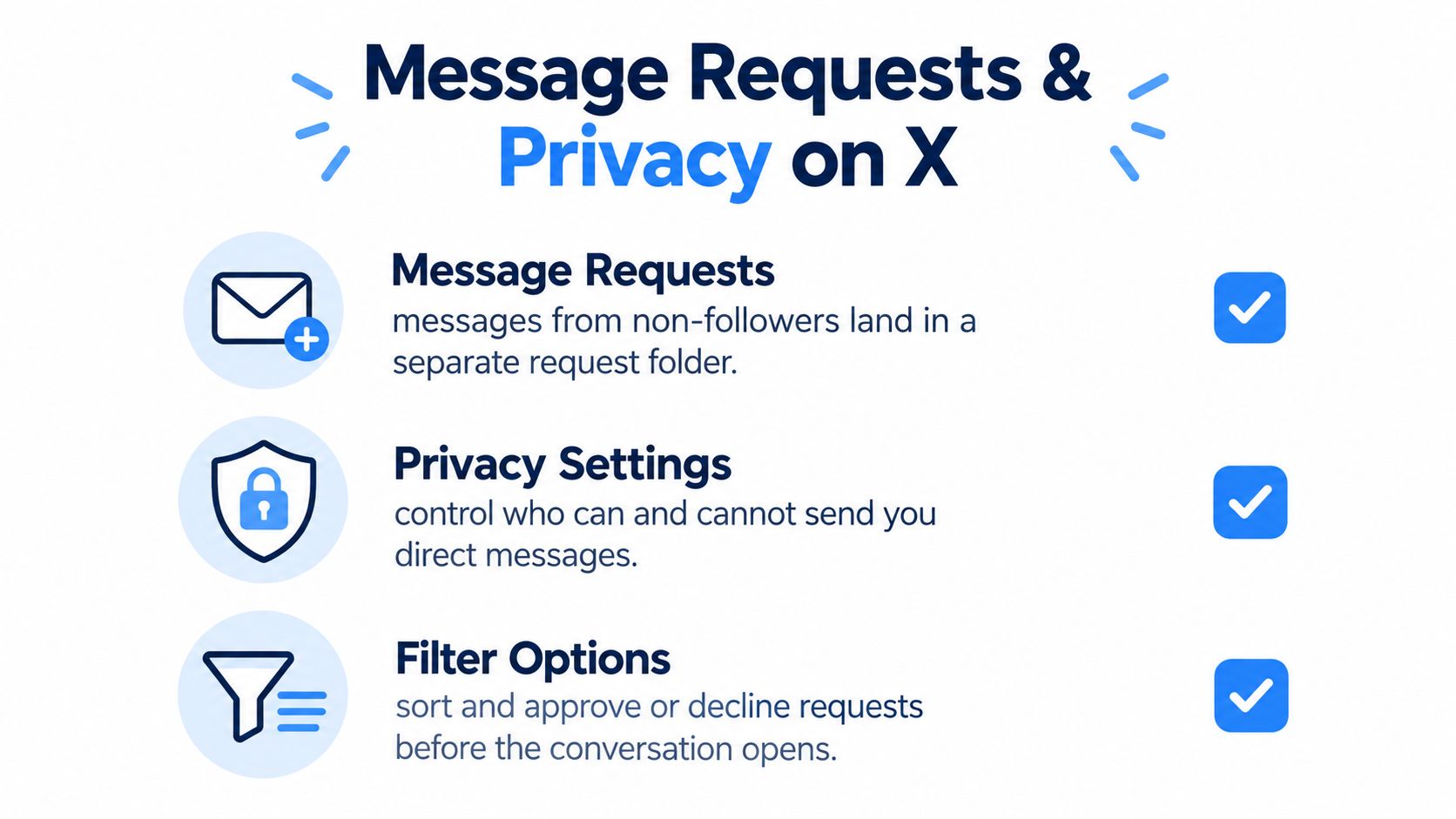
A message can leave your outbox without reaching the recipient's main inbox. If the recipient does not follow your account, X may place the conversation in message requests. They can then accept, delete, or report it before the exchange becomes a standard chat.
That creates a common outreach problem. Your account shows a sent message, while the recipient sees an unread request, checks it much later, or never opens it. A campaign can fail because the copy is weak, but it can also fail because the chosen inbox is easy to miss.
Why the button disappears
Private messaging on X has traditionally depended on the relationship between two accounts. Account owners can change their settings to accept requests from people they do not follow. UK public-sector and local-authority guidance also distinguishes a Direct Message as a private channel rather than a public post. The Local Government Association's guidance on using X notes that users can choose whether to receive messages from non-followers.
To make your own account easier to contact, open:
Settings and privacy → Privacy and safety → Direct Messages
Look for the option that allows message requests from everyone. This setting gives prospective customers, residents, or partners a route into your inbox, but it also increases unwanted requests. A brand account may accept that trade-off when customer questions and sales enquiries arrive through X. A personal account may benefit from restricting requests and reducing exposure to unsolicited contact.
Check the setting before launching outreach. A visible profile and an active public reply option do not confirm that private contact is available.
What UK teams should understand
Ofcom's online communications mapping treats Twitter direct messaging as a distinct behaviour, separate from general public posting. Its survey materials include frequency categories for “Twitter (direct messaging),” ranging from daily use to never. Ofcom's News Consumption Survey also reports that 17% of UK adults aged 16 and over used Twitter for news consumption, a historical marker available in Ofcom's online communications mapping materials.
For UK teams, the operational point is straightforward. People may use X for public information while treating private contact as a separate, more sensitive channel. Public bodies have therefore used DMs for targeted follow-up or personal conversations, rather than treating them as a substitute for a formal service desk.
Accounts belonging to minors receive additional protection. X's UK safety guidance states that minors' accounts default to receiving DMs only from accounts they follow unless the setting changes. If a message fails to a younger account, treat the restriction as a privacy control. Do not repeatedly retry or look for a workaround.
Give the request folder an owner and a review process. Check it regularly, identify legitimate conversations, and move sensitive support cases to an approved channel. A request left unseen creates the same service risk as an unanswered email.
Coordinating Group Conversations and Rich Media
A DM doesn't have to be a one-to-one exchange. X supports group conversations, which can be useful when a small project team needs to coordinate privately, when event organisers need a shared planning thread, or when a community manager needs to include several colleagues in a customer discussion.
Start a new message, add the relevant accounts, and write the first message as the purpose of the group. Name the action clearly, such as confirming an event detail or collecting information for a support handover. A group thread becomes difficult to manage when participants have to infer why they were added.
X business-facing guidance referenced in a Twitter guide for athletes notes that group DMs can include up to 50 participants. That makes the feature useful for coordinated conversations, but it doesn't turn a DM into a full project-management system. Keep decisions, ownership, and deadlines visible, and move formal records into the system your organisation uses for that purpose.
Choose the private channel deliberately
Use a group DM when the information is relevant only to the participants or when a quick decision needs discussion. Use a public post when the answer could help other customers, when transparency matters, or when you're trying to build discoverable expertise.
A private thread is often the right place to request account details, arrange a handover, or discuss a location-specific matter. It's a poor place to hide a recurring support answer that should be available to everyone. Public replies can reduce repetition, while DMs can protect context that shouldn't be exposed publicly.
Add media with a purpose
The attachment controls can help you share screenshots, images, GIFs, and links without splitting the explanation across multiple messages. Add a sentence explaining what the recipient should look at. “See attached” gives no context, while “The highlighted field is the error we need you to confirm” tells the recipient how to use the file.
If you need help preparing an animated asset before sending it, this guide on how to post GIFs on Twitter easily provides a relevant workflow. If you're collecting visual material from existing posts, use this resource on how to save GIFs from Twitter, while checking that you have the right to reuse the content.
Keep external links selective. A group conversation filled with repeated promotional URLs feels like a broadcast, not collaboration. One relevant link, paired with a clear explanation, is easier to assess and less likely to be ignored.
Understanding Data Privacy and Compliance Realities
A DM is private from the public timeline, but private doesn't mean outside data processing. X classifies direct messages as non-public communications in its data-processing documentation, which means businesses should treat them as information handled by a platform, not as an informal space with no compliance implications.
For UK organisations, that distinction affects customer support, lead generation, recruitment, partnerships, and community management. A customer may send an order reference, an email address, a complaint, or information about an account. Once that information enters a business-controlled workflow, the team needs to know who can access it, why it's being retained, and when it should be removed.
X's explanation of the relevant processing framework is available in its data-processing and legal bases documentation. Read it alongside your own privacy notice and internal handling rules rather than assuming the platform's terms answer every question your organisation has.
Set boundaries before the first enquiry
Create a short DM handling policy that answers practical questions:
- Sensitive details: Ask customers not to send payment information, passwords, or unnecessary identity data through a social inbox.
- Access control: Limit inbox access to trained team members and remove permissions when people change roles.
- Escalation: Define when a conversation moves to email, a helpdesk, a phone call, or another verified support route.
- Record keeping: Decide what needs to be recorded for service continuity and what should be deleted when it no longer serves a legitimate purpose.
- Response language: Tell customers what the account can and can't resolve through DMs.
A social inbox can contain personal information even when the initial message looks harmless. Screenshots may reveal names, addresses, order numbers, or internal systems in the background. Ask for the minimum information required and avoid copying sensitive content into shared documents unless there's a clear business reason.
For teams coordinating content and social access, keep the operating rules visible in the same place as other privacy procedures. Your internal reference can sit alongside Scheduler.social's privacy information, but it shouldn't replace organisation-specific guidance or professional advice where the processing is complex.
A private channel still needs a purpose, an owner, and a retention decision.
Managing Sending Limits and Outreach Pacing
Outreach teams often make the wrong target the daily DM cap. The cap is a ceiling, not a sensible quota. X documents a hard limit of 500 Direct Messages per day in its official Direct Messages guidance, but sending up to that limit can still create a poor experience, especially when recipients have no prior relationship with the account.
Pacing protects more than account access. It gives the team time to check whether messages are reaching requests, whether people are replying, and whether the opening copy is attracting the right audience. A fast sequence of identical messages creates operational risk and produces little useful feedback.
Build a human review loop
Before sending, divide prospects into clear groups. A customer who has asked for help needs a different workflow from a person who engaged with a public post, and both differ from a cold business introduction. The message should reflect that context.
A practical rhythm looks like this:
- Prepare a short queue. Confirm the username, reason for contact, and intended next step.
- Personalise the first line. Refer to a relevant public interaction or business need, not a generic compliment.
- Send in batches across the working day. Avoid releasing every message in one burst.
- Review replies and requests. Stop sending if recipients show confusion, rejection, or repeated non-engagement.
- Record outcomes. Note whether the person replied, asked for another channel, or declined contact.
This approach also helps customer-care teams separate active conversations from prospecting. Support messages deserve monitoring for resolution, while outreach should never crowd out people who have already asked for help.
The guide to Twitter character limits can help when you're editing a longer explanation, but length isn't a substitute for relevance. If the message needs several paragraphs to explain the offer, a short introduction followed by an agreed email or call may be more respectful of the recipient's attention.
Pacing rule: If you can't review the replies, requests, and failed sends, you're sending faster than your workflow can safely manage.
Don't respond to a restriction by creating more accounts or switching immediately to a larger blast. Pause, inspect the activity, and check whether the account has been sending repetitive content or contacting people who didn't expect a message. A smaller, more relevant queue is usually a better recovery plan than trying to find a way around platform controls.
Troubleshooting Delivery Failures and Blocked Users
A colleague says your message never arrived. Check the recipient's profile before trying again. If the envelope icon is missing, their account may restrict incoming messages, accept requests only from followed accounts, or have blocked your account.
If the message appears stuck, test the connection, reload X, and reopen the conversation later. Avoid resending the same text while the interface is unstable. Duplicate messages can confuse the recipient and obscure whether the problem is technical or caused by privacy settings.
Use this diagnosis:
- No message button: Check the follow relationship and the recipient's DM permissions.
- Message request not noticed: Ask the recipient to check their requests through another public contact route. Do not include confidential details in that public reply.
- Blocked account: A DM cannot bypass a block. The Local Government Association explains that blocked users cannot send messages and discusses DMs for personal, geographically targeted conversations when access is available. See its guidance for councillors using X.
- Wrong recipient or content: Delete the message if X provides that option, then correct the record with a clear follow-up. Do not act as though the original exchange did not happen.
- Cluttered requests: Review, accept, delete, or report requests under your team's policy.
For business accounts, log the failure and preserve relevant context without copying sensitive information into informal channels. If the recipient has blocked the account or clearly declined contact, stop outreach. Repeated attempts can turn a delivery problem into a privacy or compliance issue.
The dependable workflow is simple: confirm access, send one relevant message, monitor the right inbox, and move sensitive or complex matters to an approved channel. DMs suit recipients who expect a private conversation. They are a poor route for forcing contact.
Scheduler.social helps teams plan and publish X content from a visual calendar while managing approvals and responsibilities.