How to Change Instagram Name: Complete Guide 2026
How to Change Instagram Name. Learn how to change your Instagram display name and username on mobile and web. Step-by-step instructions, rules, limits

You've chosen a new brand name, updated the logo, and prepared the announcement post. Then someone asks for your Instagram profile link, and you realise the old username still appears on your website, email signature, campaign artwork, and scheduled content. That's where a simple profile edit can become a messy rebrand.
Instagram remains a major discovery channel in the UK. Meta advertising data indicated approximately 33.4 million Instagram users in the United Kingdom at the beginning of 2025, equivalent to 48.2% of the total population and 59.5% of UK adults aged 18 and above, according to UK Instagram audience data. If customers, collaborators, or followers can't recognise your renamed account, the problem extends well beyond the Instagram app.
The safest way to change an Instagram name is to treat it as a cross-channel identity migration. First identify which field needs changing, then prepare your replacement, make the edit, verify the result, and update every place where the old identity appears.
Table of Contents
- Understanding Instagram Names vs Usernames
- Changing Your Instagram Name on Mobile
- Updating Your Instagram Profile via Web Browser
- Instagram Name Change Rules and Limits
- Post-Change Branding and Troubleshooting Tips
Understanding Instagram Names vs Usernames
Instagram has two name fields, and confusing them causes many avoidable branding problems.
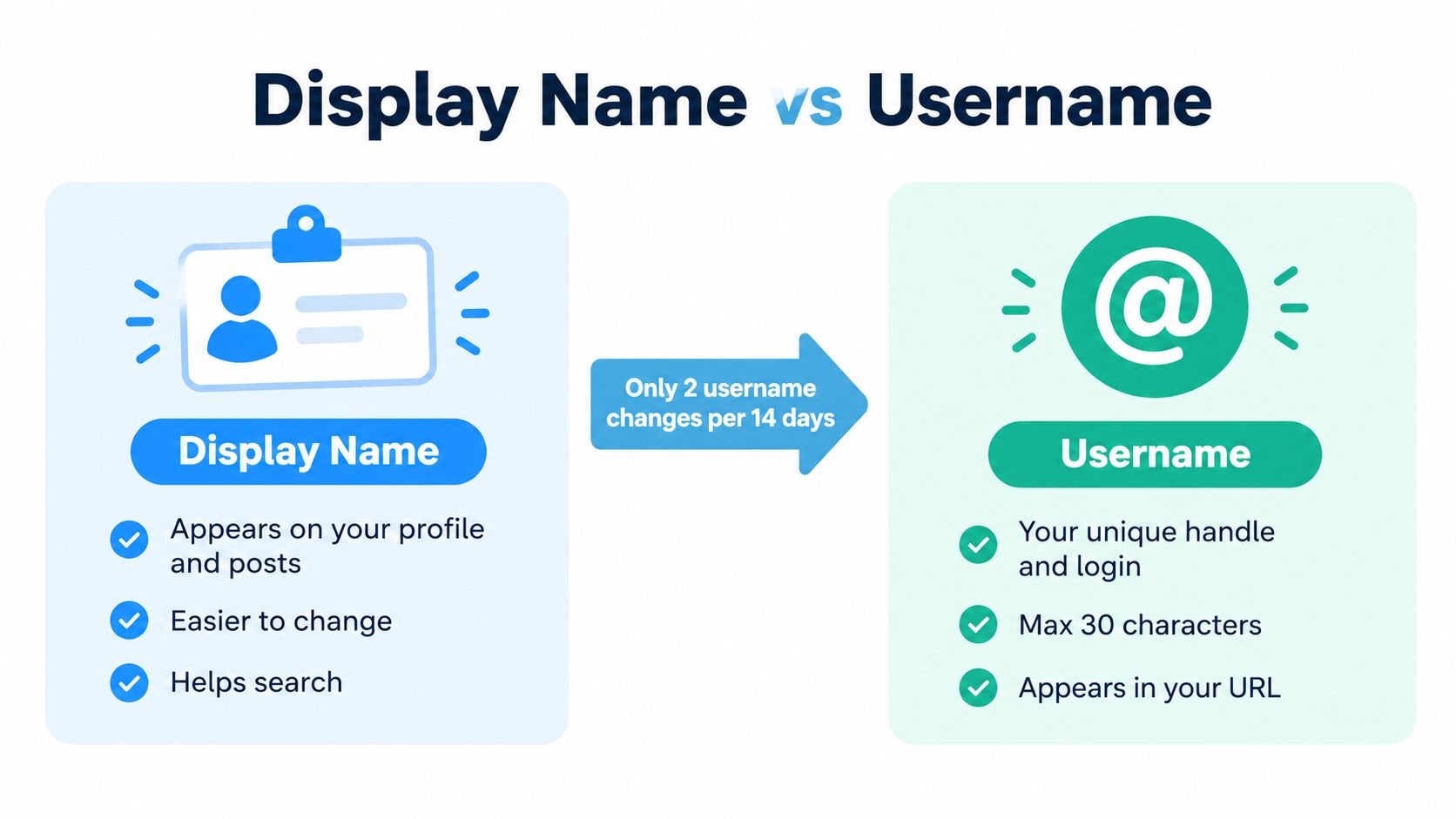
Your display name appears publicly on your profile and helps people understand who you are. It doesn't have to be unique, so several accounts may use the same wording. A business might use “North London Florist”, while a creator might use their full name or a searchable description of their work.
Your username is the unique handle that follows the @ symbol. It identifies the account in mentions and forms part of the profile URL. For example, changing a display name from “North London Florist” to “North London Flowers” usually leaves the account address unchanged. Changing @northlondonflorist affects the address people use to visit the profile.
Choose the field that matches your goal
Change the display name when you want to improve profile searchability, clarify your service, reflect a job title, or update public-facing wording without changing links. Change the username when the account's handle no longer matches the business, creator identity, or wider brand.
The distinction matters operationally:
- Display name: Public label, not unique, and generally separate from the profile URL.
- Username: Unique
@handle, used in mentions, profile links, QR codes, and campaign assets. - Both fields: Visible to your audience, but they serve different recognition and routing functions.
Open your Instagram profile and select Edit profile. On the mobile app, tap the relevant Name or Username field, enter the replacement, and save. On the web interface, log in, open your profile, choose Edit profile, change the field, and select Submit. If your account connects to Facebook through Accounts Center, you can also use More, Settings, See more in Accounts Center, Profiles, select the Instagram profile, and choose Name or Username.
Practical rule: If the change affects
@mentionsor a URL, plan it like a migration. If it only changes the words visitors see on the profile, the operational risk is smaller.
Before editing, write down the current username and profile URL. Check where they appear in your Instagram publishing workflow, including scheduled posts, profile links, creator briefs, and approval notes.
Changing Your Instagram Name on Mobile
The Instagram mobile app separates the two edits clearly, but the fields sit close together. Take a moment to decide whether you're changing the display name, the username, or both before tapping Done.
The mobile steps
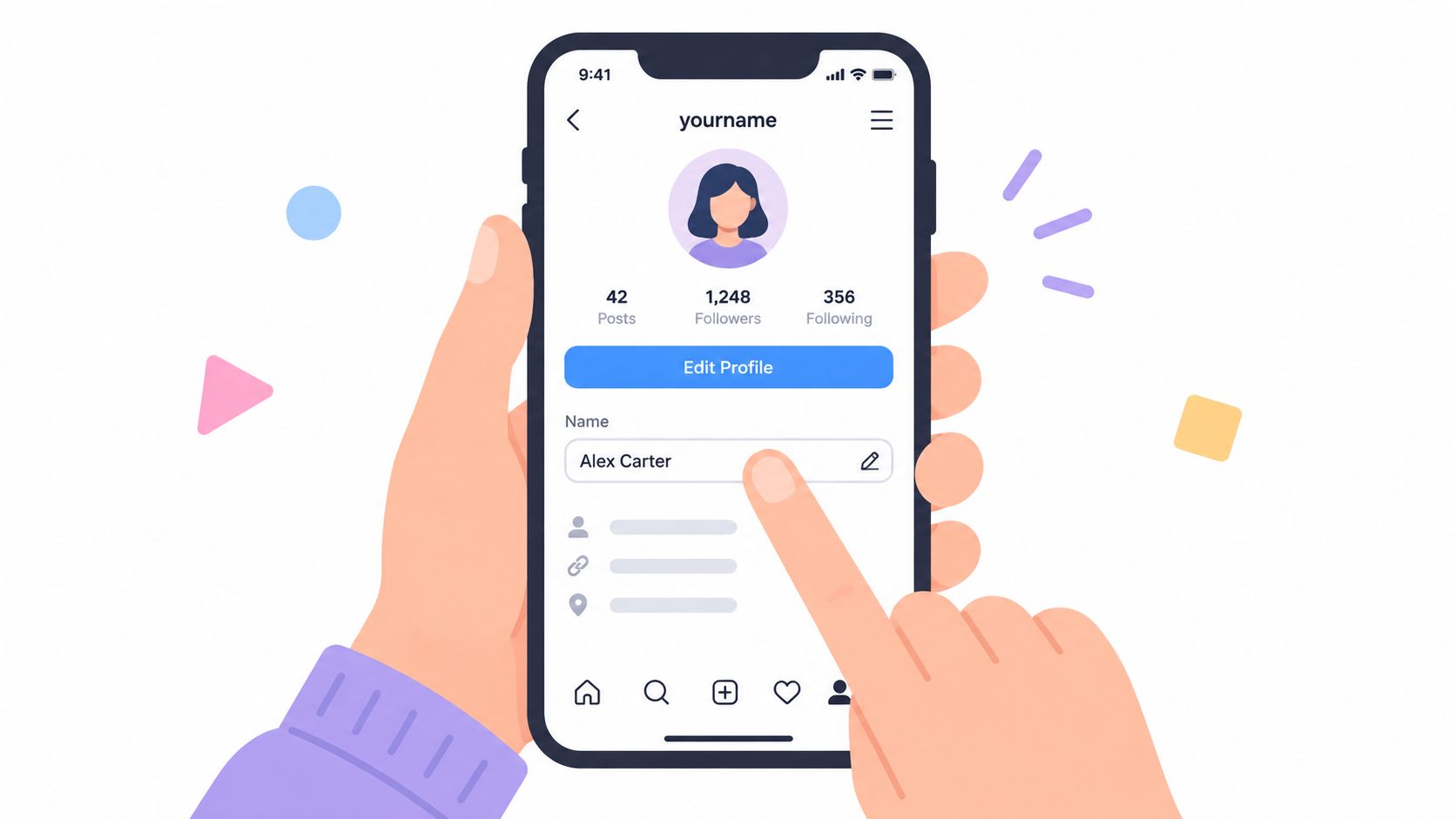
- Open your profile. Launch Instagram on your iPhone or Android device, then tap your profile picture in the navigation bar.
- Select Edit profile. This opens the fields that control your public profile information.
- Choose Name or Username. Tap Name if you're changing the display wording. Tap Username if you're changing the
@handleand profile address. - Enter the replacement carefully. Keep the spelling consistent with your approved brand name. For a username, check every character, including full stops and underscores.
- Save the change. Depending on the app version and account type, Instagram may show a tick, Done, or another save control. Wait for the profile to refresh before closing the app.
- Reopen the profile. Confirm that the new name appears correctly and that the username is the one you intended to submit.
The most common mobile mistake is editing Name while expecting the profile URL to change, or editing Username without realising that existing links may now lead to the wrong destination. A second mistake is copying a handle with an accidental space or an extra punctuation mark from a notes app.
If you manage content in advance, inspect your next scheduled posts after saving. Captions, graphics, mentions, and calls to action may still reference the former identity. You'll also want to review any story templates or saved promotional assets before publishing. For teams that organise recurring story content, keep the transition visible in the Instagram Stories scheduling workflow.
If Instagram rejects the edit, don't keep submitting random variations. Check whether you changed the correct field, remove unnecessary punctuation, confirm the desired username is genuinely available, and try the Accounts Center route if the app interface behaves unexpectedly.
Use the following walkthrough as a visual reference after you've identified the right field:
A successful save inside the app isn't the final check. Visit the profile from another account or an incognito browser, test the public URL, and look at the profile as a customer would. That catches stale links and incomplete updates before your next campaign goes live.
Updating Your Instagram Profile via Web Browser
The desktop route is useful when you're managing a rebrand alongside website edits, campaign documents, or a team approval process. It also gives you more room to compare the old and new spellings before you submit the change.
Edit the profile on Instagram's website
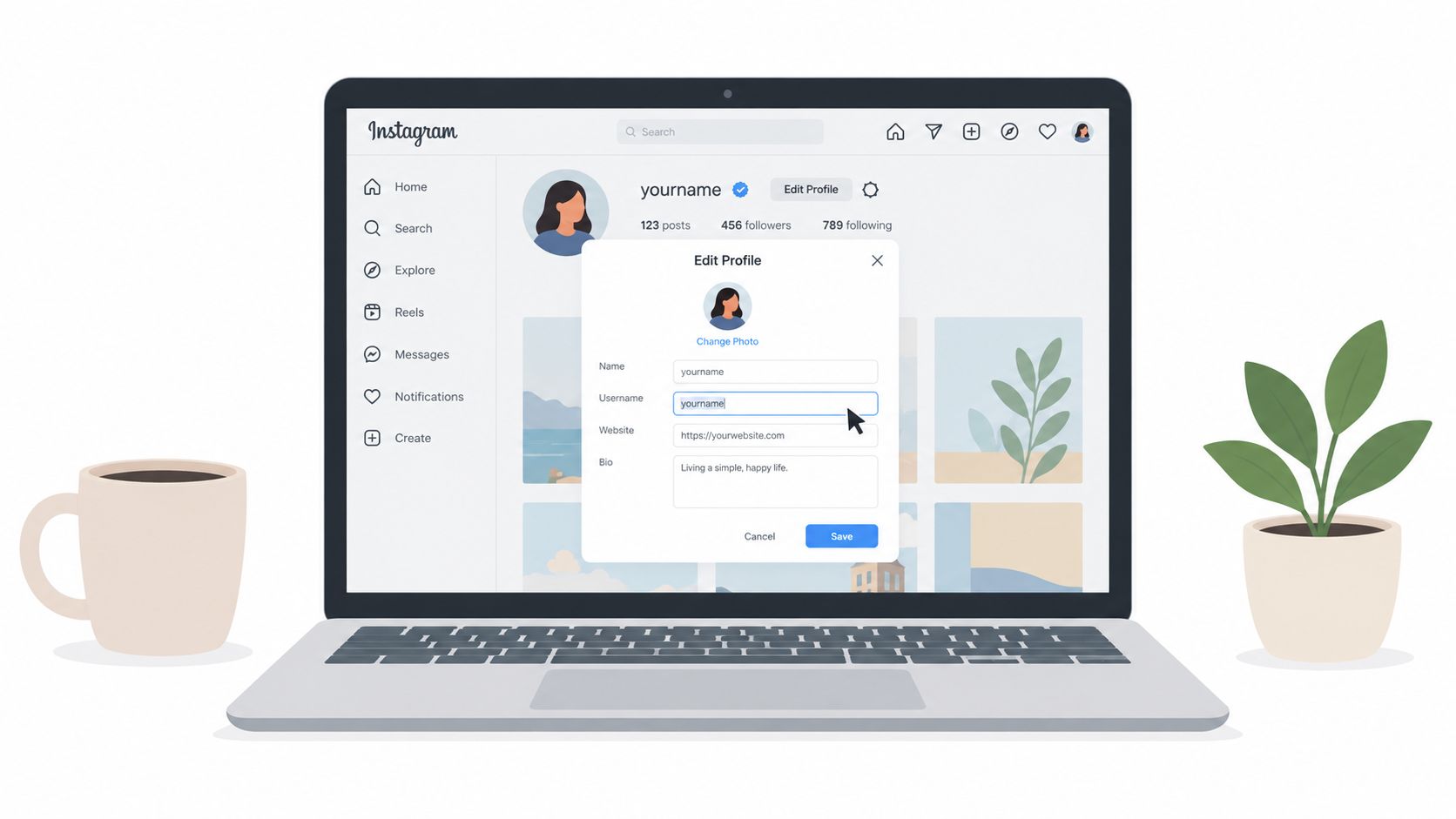
- Log in to Instagram in your browser.
- Open your profile and select Edit profile.
- Find the Name or Username field.
- Replace the existing value.
- Select Submit and wait for the profile to reload.
- Open the public profile in a separate private or incognito window.
The browser version follows the same basic logic as the app. The Name field controls the public display label, while Username controls the unique handle and profile URL. A display name normally doesn't require availability, but a username does. If your preferred handle is already claimed, prepare a deliberate alternative rather than adding arbitrary characters at the last moment.
Instagram also provides an Accounts Center path through More, Settings, See more in Accounts Center, Profiles, and the relevant Instagram account. From there, choose Name or Username, edit the value, and select Done. This route is particularly useful if your Instagram account is connected to a Facebook profile and you need to check which profile identity you're editing.
Verify the result outside your account
Don't rely only on the confirmation message. Search for the new username while logged out, paste the updated profile URL into a private browser window, and check whether the page resolves to the correct account. Then test a link from your website, email footer, digital media kit, or campaign document.
A browser check also exposes recognition problems. If the new handle is technically correct but looks unfamiliar, keep a short transition note in the bio and use a story or post to explain the change. That gives existing followers a clear connection between the former identity and the new one.
Instagram Name Change Rules and Limits
Instagram treats display-name changes and username changes differently, so the same expectation shouldn't be applied to both.
A display name doesn't need to be unique. A username does, because Instagram uses it as the account's handle and part of its profile address. If the preferred handle appears unavailable, try a considered variation using a full stop, number, underscore, or abbreviation, which Instagram identifies as possible alternatives in its official username guidance.
Why an available-looking handle can fail
A username that appears abandoned isn't automatically available. Instagram has separate guidance for usernames that seem to belong to inactive accounts, so avoid assuming that inactivity gives you a right to claim the handle. Ownership history, platform protection, and account status can all affect the result.
Previously used usernames also aren't guaranteed to remain available to you. Instagram says reclaiming one generally depends on nobody else taking it and on the name not having been recently removed from an active account owned by someone else. That makes a test rename risky if you haven't settled on the replacement.
A reversible plan isn't guaranteed. Once you release an old handle, another person or brand may claim it before you decide to return.
Instagram may hold a username change for review when an account reaches many people. The platform also warns that followers may be notified. Other changes may apply immediately, but there's no UK-specific official success rate or processing-time figure to rely on, so treat instant approval as conditional rather than promised. Instagram's help documentation on changing usernames is the appropriate reference if your account receives a review message.
Plan around platform protection
Avoid repeatedly testing variations in quick succession. Record the desired handle, a fallback, and evidence that your brand uses the name. Check the connected Accounts Center profiles before attempting the change, particularly if Facebook and Instagram are managed by different people.
The practical limit isn't a published success percentage. It's whether you can verify the new identity, confirm the URL works, and maintain continuity while Instagram processes or reviews the request.
Post-Change Branding and Troubleshooting Tips
The profile edit is the midpoint of the job, not the finish. A renamed Instagram account can still create confusion if customers encounter the old handle in a Google Business Profile, a product package, a creator partnership brief, or a scheduled graphic.
UK Instagram users are concentrated in commercially important groups. Industry analysis based on platform and market data estimated approximately 34.71 million UK Instagram users in January 2025, with 25 to 34-year-olds representing 29.7% of users, and women accounting for 55% of the user base. The same analysis reported that 81% of UK retailers used Instagram for business marketing, as described in UK social media usage analysis. For a consumer-facing brand, recognisable wording matters because a new handle may be seen by customers who already know the old one.
Run the migration checklist
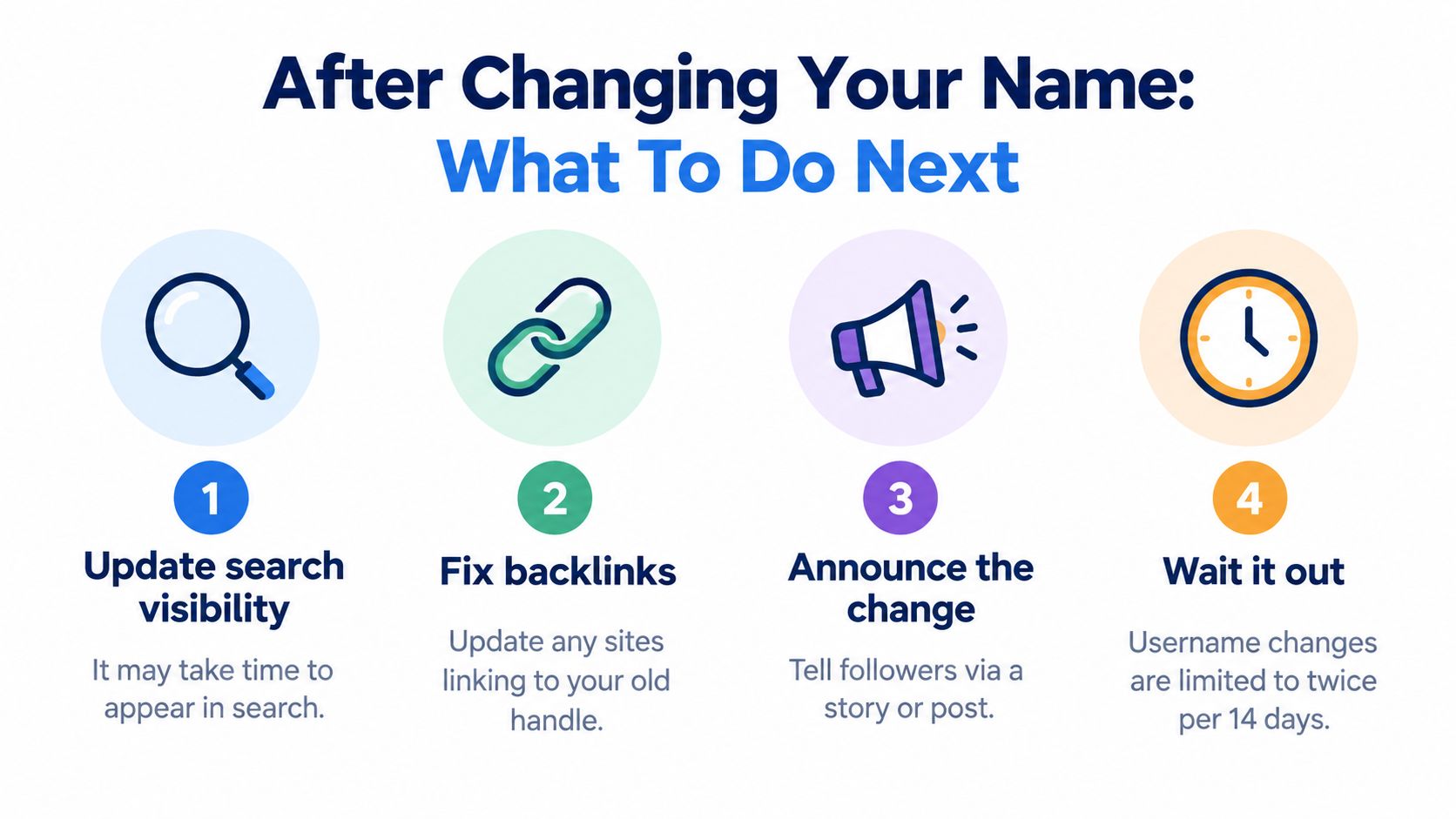
- Preserve recognition: Add a short note such as “formerly @oldhandle” to the bio for the transition period. Use the former name in selected captions where it helps people connect the accounts.
- Update owned channels: Replace the old handle on your website, email signatures, packaging, QR codes, Google Business Profile, media kit, creator briefs, and customer support documentation.
- Repair campaign assets: Review scheduled posts, approval notes, captions, link stickers, profile mentions, and destination URLs before anything publishes.
- Announce the change: Use a story and a feed post to state the new name plainly. Don't make followers infer that the unfamiliar account is still yours.
- Monitor conversations: Watch direct messages, comments, mentions, branded searches, and partnership enquiries for signs that people can't find or identify the account.
- Verify publicly: Test the new profile URL from an incognito browser and ask someone outside the account team to find it using the new name.
Troubleshoot the likely failure points
If the username was rejected, separate the problem into categories. A rejected display name may involve wording or platform rules. A rejected username may mean that the handle is claimed, protected, under review, or affected by a connected profile. Check the spelling, try the Accounts Center route, and keep the fallback handle ready.
If the change is under review, don't announce the replacement as final across every channel. Keep campaign materials adaptable until the profile shows the new handle publicly. A rushed announcement followed by a delayed approval can leave your website, adverts, and Instagram profile describing different identities.
If followers can't find the account, use the old name in your transition message and direct them to the profile through a story link or an existing owned channel. Instagram's guidance also makes clear that a previously used username may not be recoverable if someone else takes it or if platform protections apply, as outlined in Instagram's username recovery guidance. Don't promise customers that you'll switch back.
The best post-change test is operational: the profile displays correctly, the new URL resolves, scheduled publishing uses the new identifier, and a customer can recognise the account without asking for help.
For teams trying to rebuild consistent discovery after a rename, the next priority is dependable publishing rather than a sudden burst of disconnected posts. Use a structured Instagram follower growth workflow to keep the new identity visible across useful, relevant content while you monitor questions and mentions.
A successful Instagram rename is controlled, documented, and coordinated. Record the old identity, secure the new one, update every public touchpoint, and give followers enough context to understand what changed.
Scheduler.social helps you plan, adapt, approve, and publish Instagram content alongside your other social channels from one visual calendar, so a username change doesn't leave scheduled posts and campaign assets inconsistent. Visit Scheduler.social to organise your content migration and keep your new brand identity consistent across every channel.